
If you have forgotten your Updraft password or are unable to sign in, you can reset it from the login screen without needing to contact your administrator.
On the Updraft login page, enter the email address associated with your Updraft account and select Reset Password.
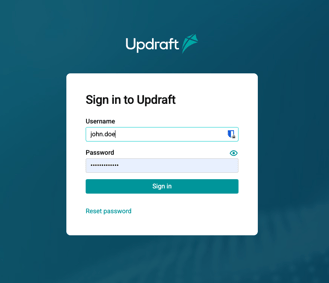
You will receive an email containing instructions to reset your password. If you do not see the email in your inbox, check your junk or spam folder. Make sure you are using the email address associated with your Updraft account.
Select the password reset link in the email and follow the instructions to create a new password. For security reasons, the reset link may only be valid for a limited period of time. If the link has expired, return to the login page and request another password reset.
When creating your new password, choose a strong password that is difficult for others to guess. Avoid using passwords that you already use for other accounts or that contain easily identifiable information.
Once your password has been successfully updated, return to the Updraft login page and sign in using your email address and new password.
If you did not request a password reset, do not use the reset link. Contact your organisation's Updraft administrator or support team so that they can assist you in securing your account.