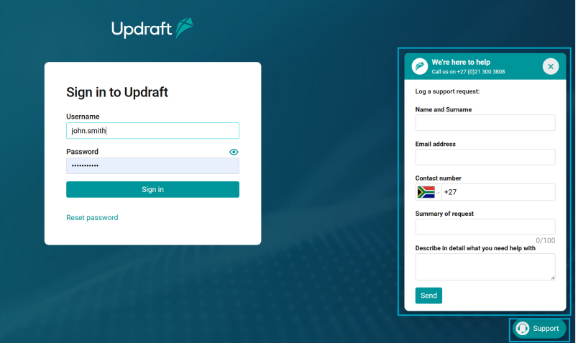
This article is helpful for new users using the system for the first time.
Estimated reading time: 3 minutes
Before you begin
Make sure that:
- Your company has been set up as a client on the system.
- You have been added as a user.
- You have access to the email address linked to your user profile.
SSO login
1. Open the Updraft link provided
Your system administrator will provide you with Updraft the link.
2. Navigate to Updraft and click sign in
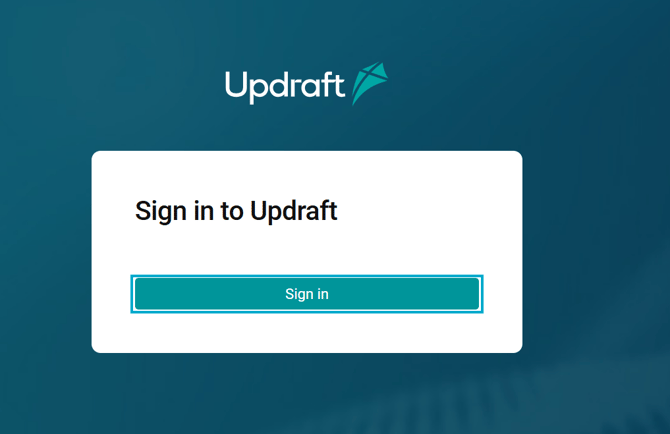
After following these steps, you should be successfully logged in.
Password login
1. Open your welcome email
Your system administrator will send you a welcome email with instructions.
After following this step, you should see the password setup link and your username.
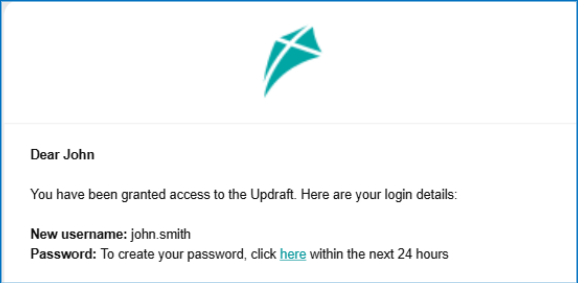
2. Create your password
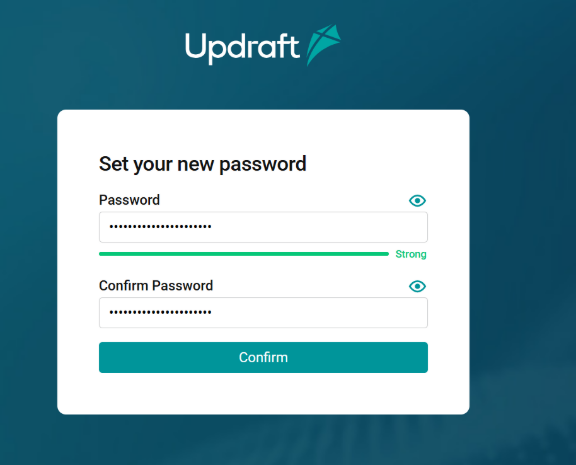
Click the link in the email or copy it into your browser. Once the page opens, create and confirm a new password.
Your password is accepted only when the strength indicator shows a green line and Strong.
Select Confirm.
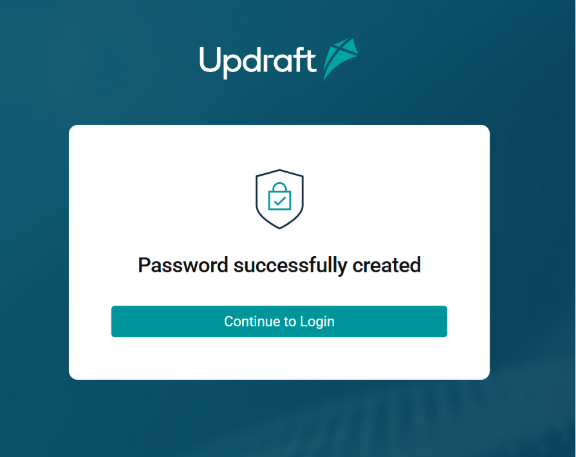
After following this step, a confirmation message should confirm that your password has been created.
3. Continue to the login page
Before logging in, save the login page as a browser favourite so you can find it easily in future.
On the confirmation page, select Continue to Login.
After following this step, the login page should be open.
4. Log in
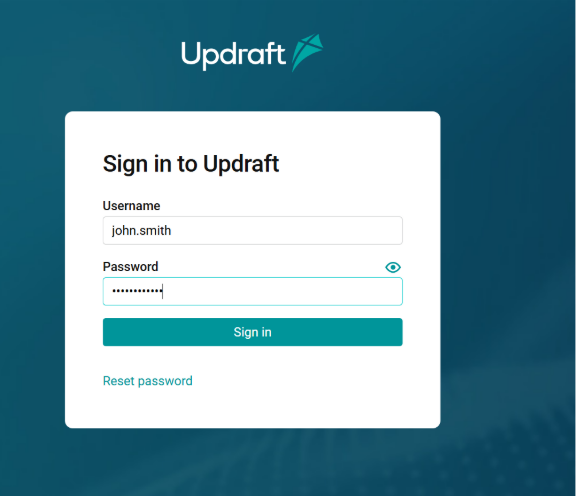
Enter your username and your newly created password, then select Login.
After following this step and if your company does not use two-factor authentication, you should be successfully logged into the system.
5. Complete two-factor authentication, if required
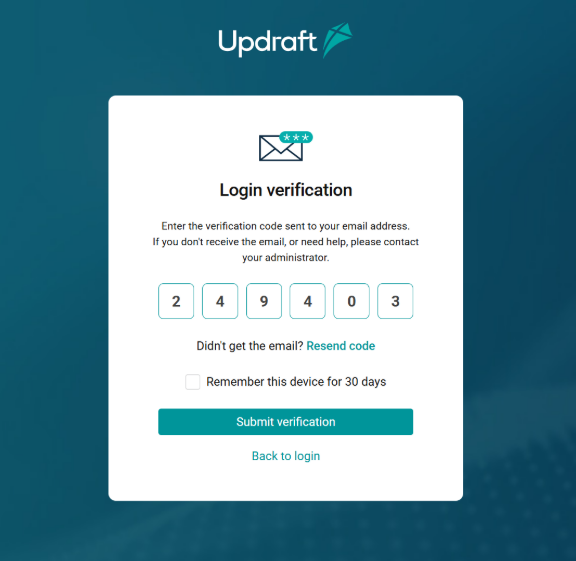
If your company uses two-factor authentication (2FA), the system will ask you to verify your login using email.
Retrieve the verification code from your email by copying and pasting it in the verification code field on your browser.
After following this step, the system should accept the code and move you to the verification screen.
6. Confirm your verification
If you wish the system to remember your browser for 30 days and skip the verification code process, select Remember this device for 30 days checkbox.
Select Submit verification to complete your login.
After following this step, you should be succesfully logged into the system.
Keep your account secure
- Do not share your username, password, or verification codes with anyone.
- Sign out of the system whenever you leave your device unattended.
- If you receive a verification code that you did not request, change your password.
Reset your password
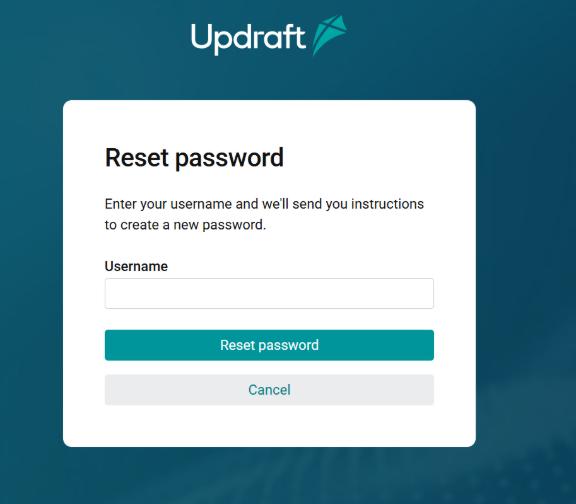
You can reset your password at any time from the login page:
- Select Reset password.
- Enter your username.
- Open the password-reset email and follow the instructions.
After following the above steps, you should be able to create a new password and log in again.
Sign out of the system
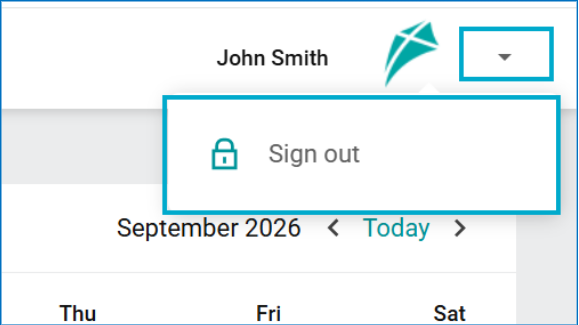
- Select the arrow next to your name and company logo in the top-right corner.
- Select Sign out.
After following the above steps, you should be signed out of the system.
Troubleshooting and common issues
| Issue | Likely cause | What to do |
| You cannot log in, or you see an error message when you try. | You have entered an incorrect username or password. | Double-check your details and try again. If the issue continues, reset your password or contact Support. |
| You are prompted for a verification code you did not request. | Someone may be attempting to access your account. | Reset your password immediately. |
Related articles
- [Placeholder: ]
- [Placeholder: ]
Still need help?
Select the Support button on the login page or within the system and provide your contact details (if you are not logged in) and a brief description of the issue.